

On this page
Check what your TV is receiving
Most TVs show the incoming signal if you press Info or open the input menu: look for 3840 × 2160 (or 2160p) and an HDR badge such as HDR10, HLG or Dolby Vision. If it says 1080p, the TV is being sent HD, whatever the content claims.
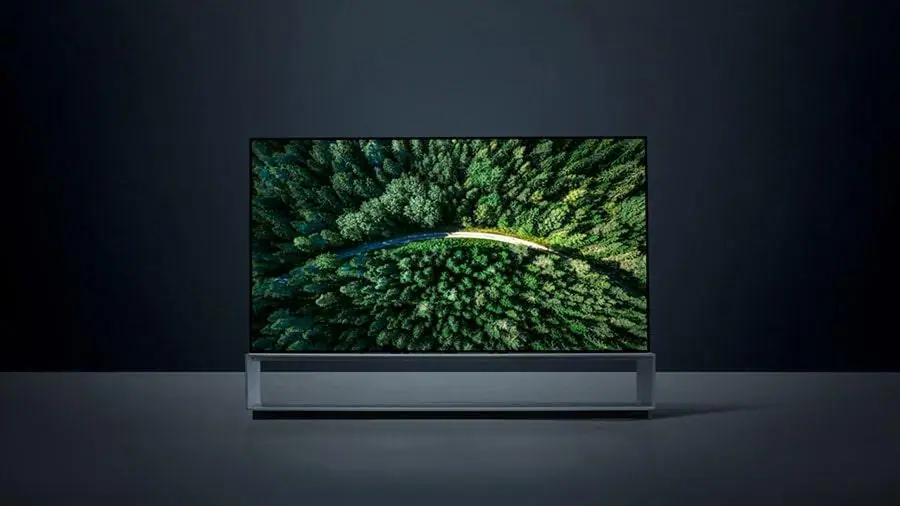
Six things that stop 4K reaching your screen
- The source is HD. Many channels are still produced in HD. Only 4K content can show as 4K. See HD vs 4K.
- The device is set to 1080p. Check the display resolution in your stick or box settings.
- The wrong HDMI port. On some TVs only certain ports support 4K at 60 Hz with HDR; look for a label such as 4K, HDR or UHD.
- The TV’s enhanced HDMI mode is off. Samsung calls it Input Signal Plus; LG calls it HDMI Ultra HD Deep Colour; other brands use similar names.
- An old HDMI cable. Use a certified Premium High Speed or Ultra High Speed cable.
- Not enough bandwidth. When the connection dips, the stream drops to a lower quality. Allow about 25 Mbps per 4K screen. See internet speed.
Settings that make 4K look its best
- Picture mode: Filmmaker, Movie or Cinema for films and drama.
- Turn off energy-saving modes that dim the screen.
- Enable frame-rate and dynamic-range matching on your streaming device so HD is not forced into HDR.
- Sit close enough: on a 55-inch TV, about two metres or less to appreciate 4K detail.
Why some "4K" looks soft
A 4K label does not guarantee a 4K source. Upscaled HD, a low bitrate or heavy compression on fast motion all soften detail. A clean, high-bitrate HD stream can look better than a starved 4K one. If you are choosing a plan, our 4K IPTV page lists what you need for the real thing.
HDR formats in plain English
| Format | Where you will meet it | Notes |
|---|---|---|
| HDR10 | Most 4K streaming and devices | The baseline HDR format |
| HDR10+ | Some streaming services and Samsung TVs | Adds scene-by-scene adjustments |
| Dolby Vision | Many streaming services and Apple TV | Dynamic HDR; needs TV support |
| HLG | Live broadcasts, including BBC 4K | Designed for live TV |
A five-minute check
- Open a programme labelled 4K in a licensed app.
- Press Info on the TV remote and confirm 2160p and an HDR badge.
- Check the device’s display settings show 4K and the right HDR mode.
- Try the HDMI port labelled 4K or HDR if the resolution is wrong.
- Run a speed test: about 25 Mbps should be free for the 4K stream.
Frequently asked questions
How do I know if I am watching in 4K?
Press Info on your TV remote or check the input details: it should show 3840 × 2160 or 2160p, often with an HDR badge.
Why does my 4K TV not show 4K?
The source may be HD, the device may be set to 1080p, or the HDMI port, cable or enhanced HDMI setting may be holding it back.
Does HDMI cable quality matter for 4K?
Yes for 4K HDR at 60 Hz. Use a certified Premium High Speed or Ultra High Speed cable.
